Once you have read the conversation and looked over the truck's profile — see Reviewing applications from trucks — you are ready to decide. This page covers the status control itself, what each choice does, and why it is worth pausing before you choose Rejected.
Changing an application's status
Open the application's thread and use the Status control at the top of the conversation. On a narrower screen, it is inside the Details drawer instead. It offers three choices, each with a one-line description of what it means:
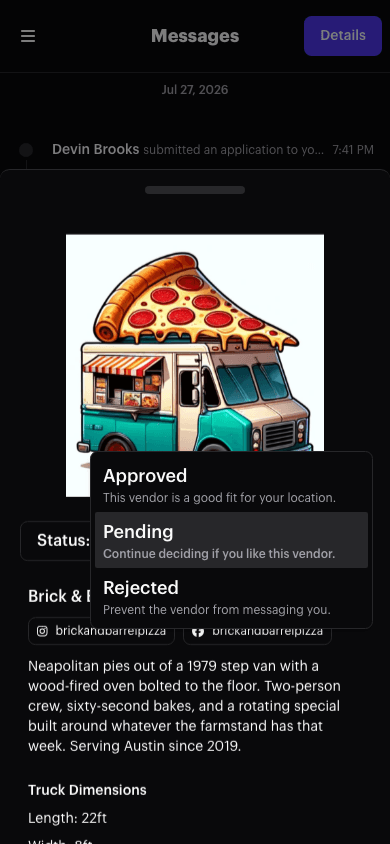
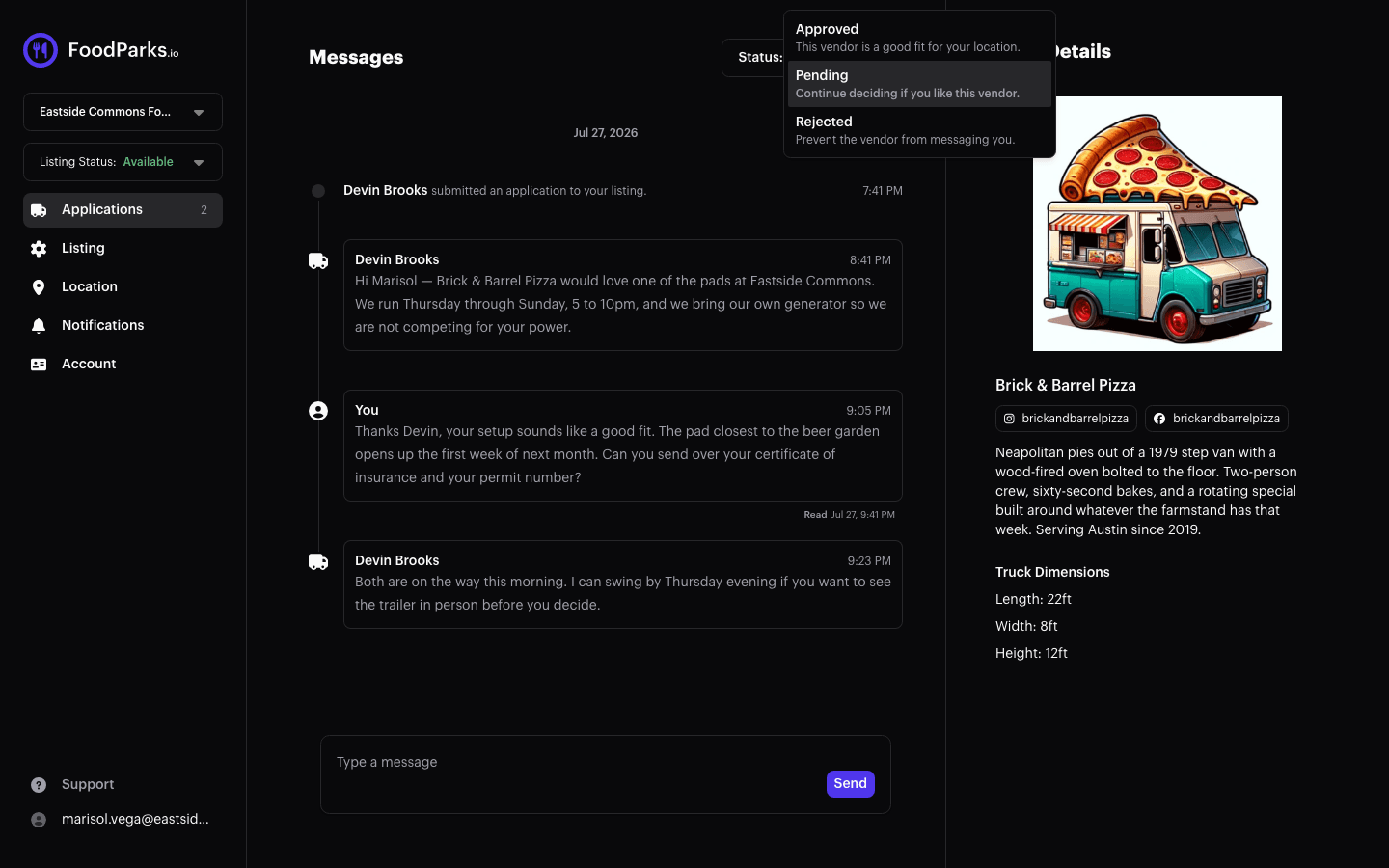
- Approved — Marks this truck as a good fit for your space. It does not unlock anything you did not already have — you could message the truck and review its profile while the application was still Pending — it is simply your own "yes."
- Pending — Where every new application starts, and also where you can put one back if you want more time, or if you change your mind about a decision you already made.
- Rejected — Marks the truck as not a fit, and closes the conversation: rejecting formally cuts off the truck operator's side, and your own message box closes too — it's replaced with "Application has been rejected."
You can move an application between all three statuses at any time, in either direction — choosing Rejected does not lock you out of it yourself. If you change your mind, opening the same Status control and choosing Approved or Pending again reopens the conversation immediately.
Why it is worth deciding carefully anyway
A food truck gets exactly one application per listing, ever — approving or rejecting it does not clear the way for a second one. If you leave a truck's application Rejected, that truck has no way to apply to your listing again: on your listing's public page, their Apply (or Join Waitlist) button is permanently replaced with a disabled "Applied" button — or "Waitlist Joined", depending on whether your listing is Available or Waitlist — whether their one application is Pending, Approved, or Rejected. There is no separate "let this truck reapply" action anywhere — the only way back is you switching that same application to Pending or Approved yourself. See the FoodParks glossary for more on how applications work, and What your application status means for what the truck operator sees on their end.
If you are not sure yet, message them before deciding — rejecting shuts the conversation down, so it is easier to ask your question first. See Reviewing applications from trucks for where to find the conversation and the truck's profile.
What the truck operator sees
Whichever status you pick, no email goes out: the truck operator sees the new status on the application itself, and a rejected truck also learns it from the conversation closing on their end. If they use the FoodParks mobile app, the change sends them a push notification. See Emails FoodParks sends for what FoodParks does email about.
Because no email announces the decision, a message is the surest way to tell them — see below.
The application stays visible to both of you whichever status you pick; a Rejected one is not removed, it simply sorts to the bottom of your Applications list. If you want the truck to hear more than the bare decision, send them a message as well: while your listing is Available, messages in an application thread get emailed to the other party, and they can reply straight from that email. On a Waitlist listing, the message still lands in the thread for them to read, but no email goes out to announce it. On a Hidden or Disabled listing, the message box is closed entirely — you can't send one at all. See Your messages inbox for how that works, and Trouble applying to a listing? if a truck operator asks why they cannot apply again after being rejected.