Tags are short labels that describe your listing beyond its name and description — what's set up on site, what's around it, and when it tends to get busy. Truck operators use them to judge fit before they apply. See the FoodParks glossary for the short definition.
The three tag groups
Every tag belongs to one of three groups:
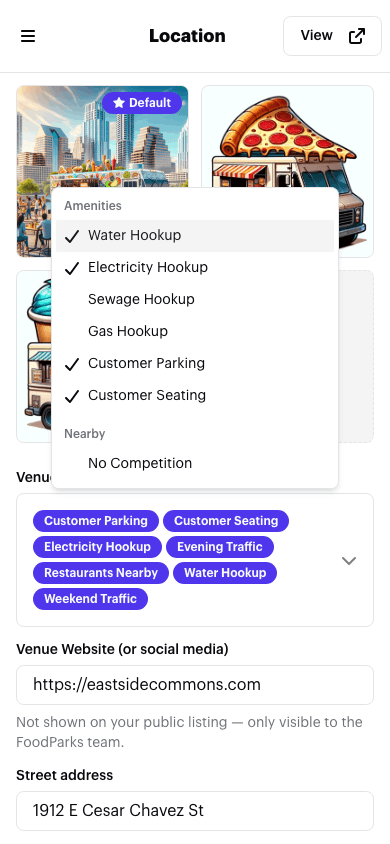
- Amenities — Water Hookup, Electricity Hookup, Sewage Hookup, Gas Hookup, Customer Parking, Customer Seating.
- Nearby — No Competition, Vendors, Restaurants, Bars, Businesses, Residential, Shopping, Busy Road.
- Traffic — All Day, Daytime, Evenings, Late Night, Weekends.
Pick every one that applies to your space. There's no limit on how many you can select, but you need at least one before you can save.
Setting your tags
Tags live on your listing's Location page — not the Listing page where you edit its title, description, and price. See Editing your listing if that's what you're looking for. Open your listing's dashboard, choose Location from the side menu, and use the Venue Attributes field.
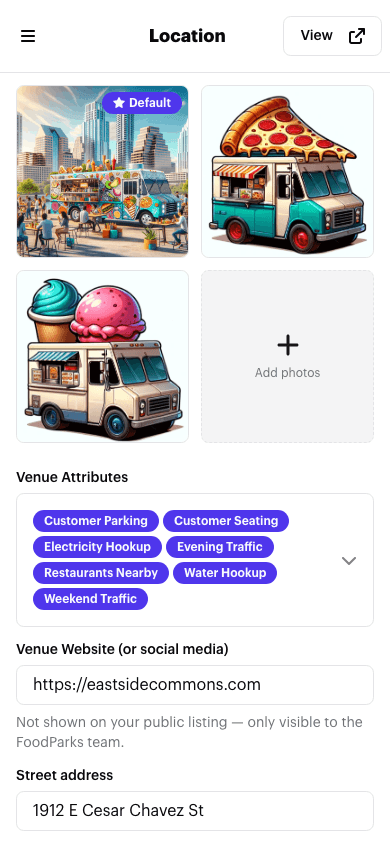
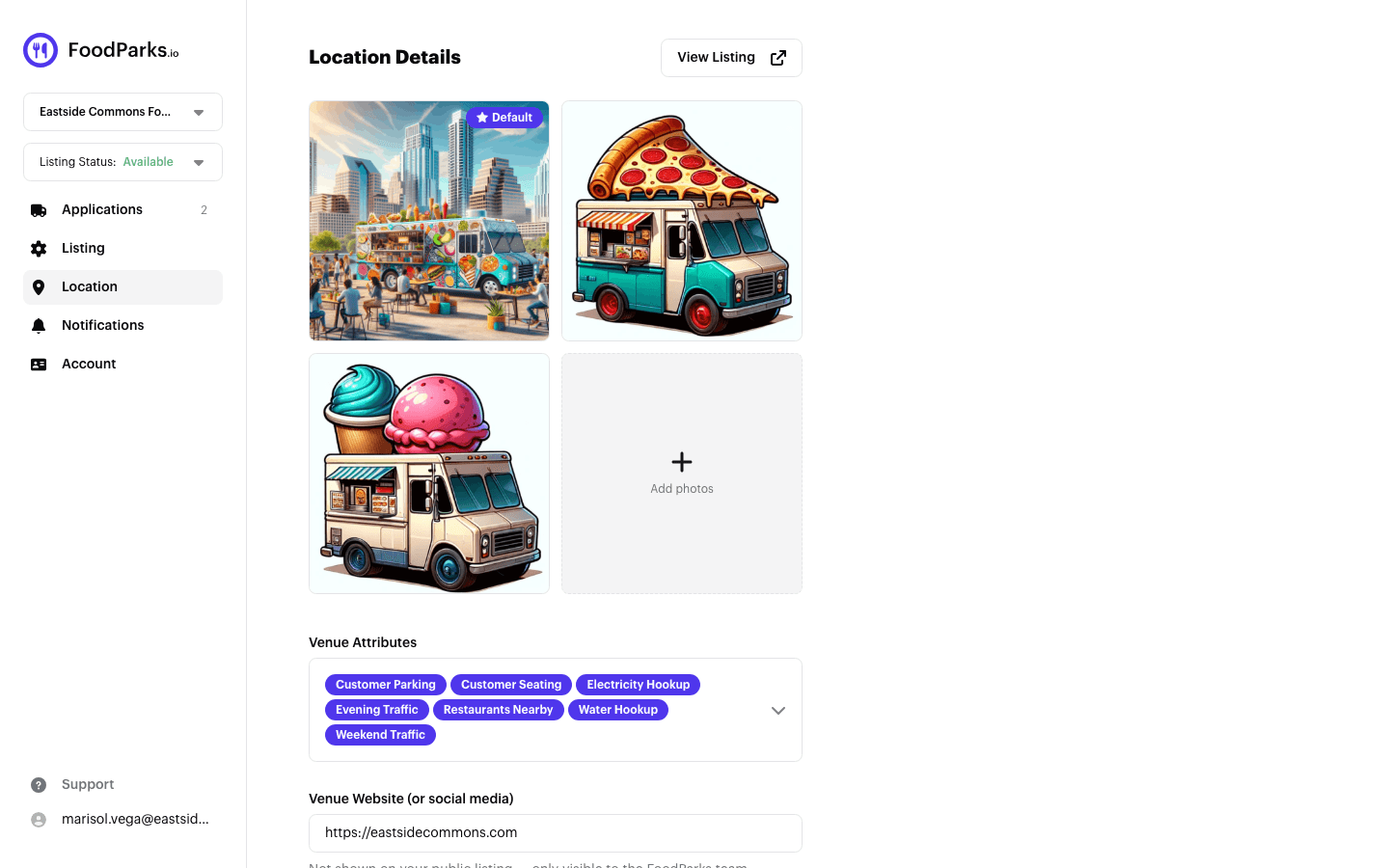
Click the field to open the picker. Every option is grouped under the same three headings, with a checkmark next to each one you've already selected — click an option to add or remove it.
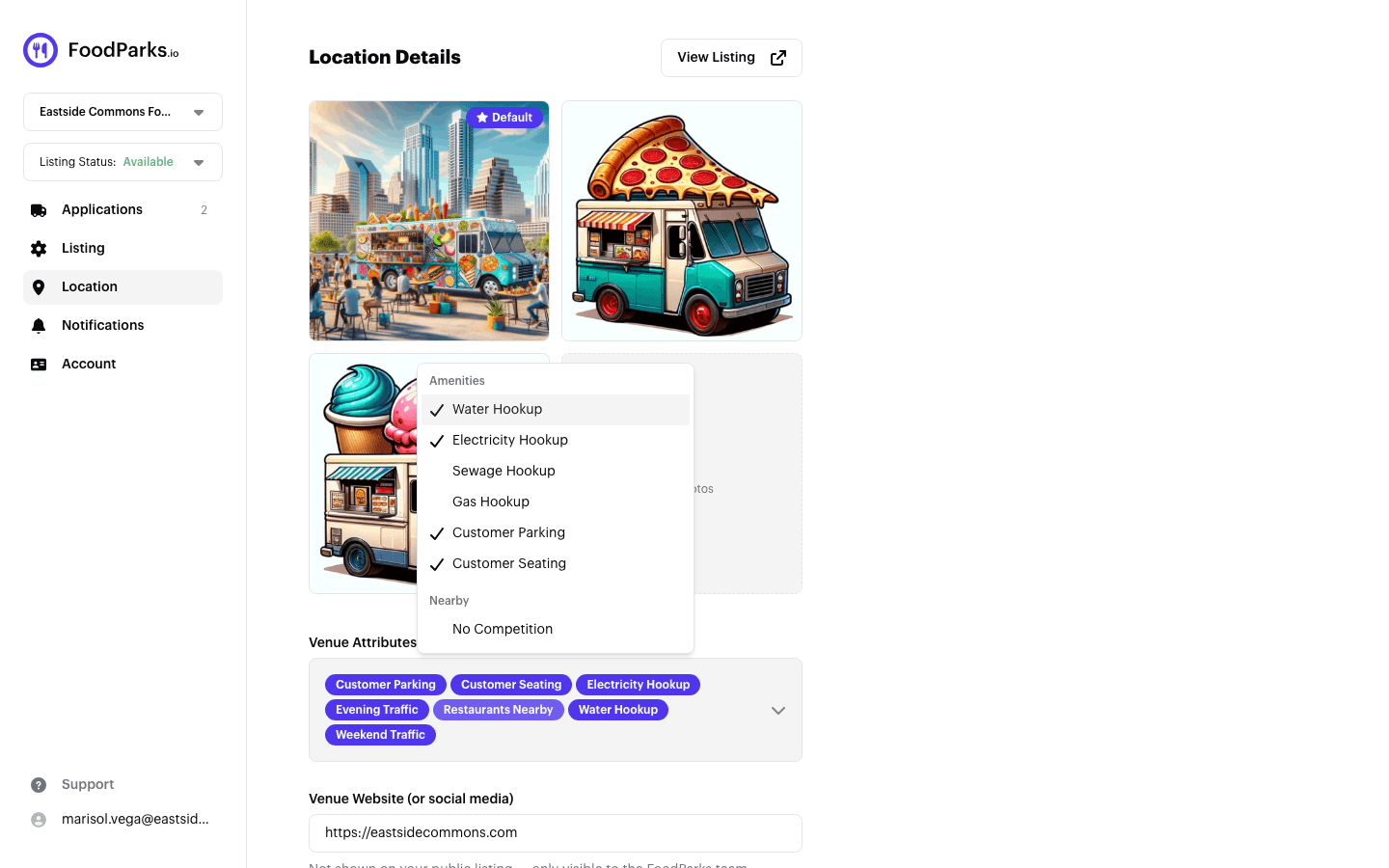
Save stays disabled until you change something, then saves your update. See Managing location details for the rest of what lives on this page — photos and your address.
What trucks see
Once your listing is live, your tags appear on its public page under a What the space offers heading. Each tag is its own link — clicking one takes a truck operator into the locations directory, filtered to other listings in your state that share it.
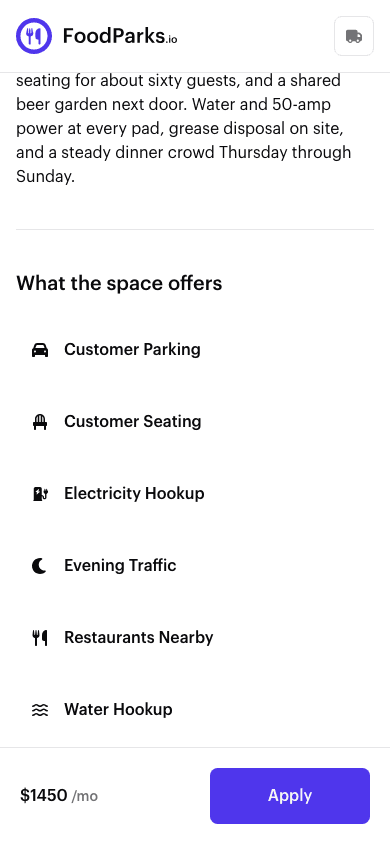
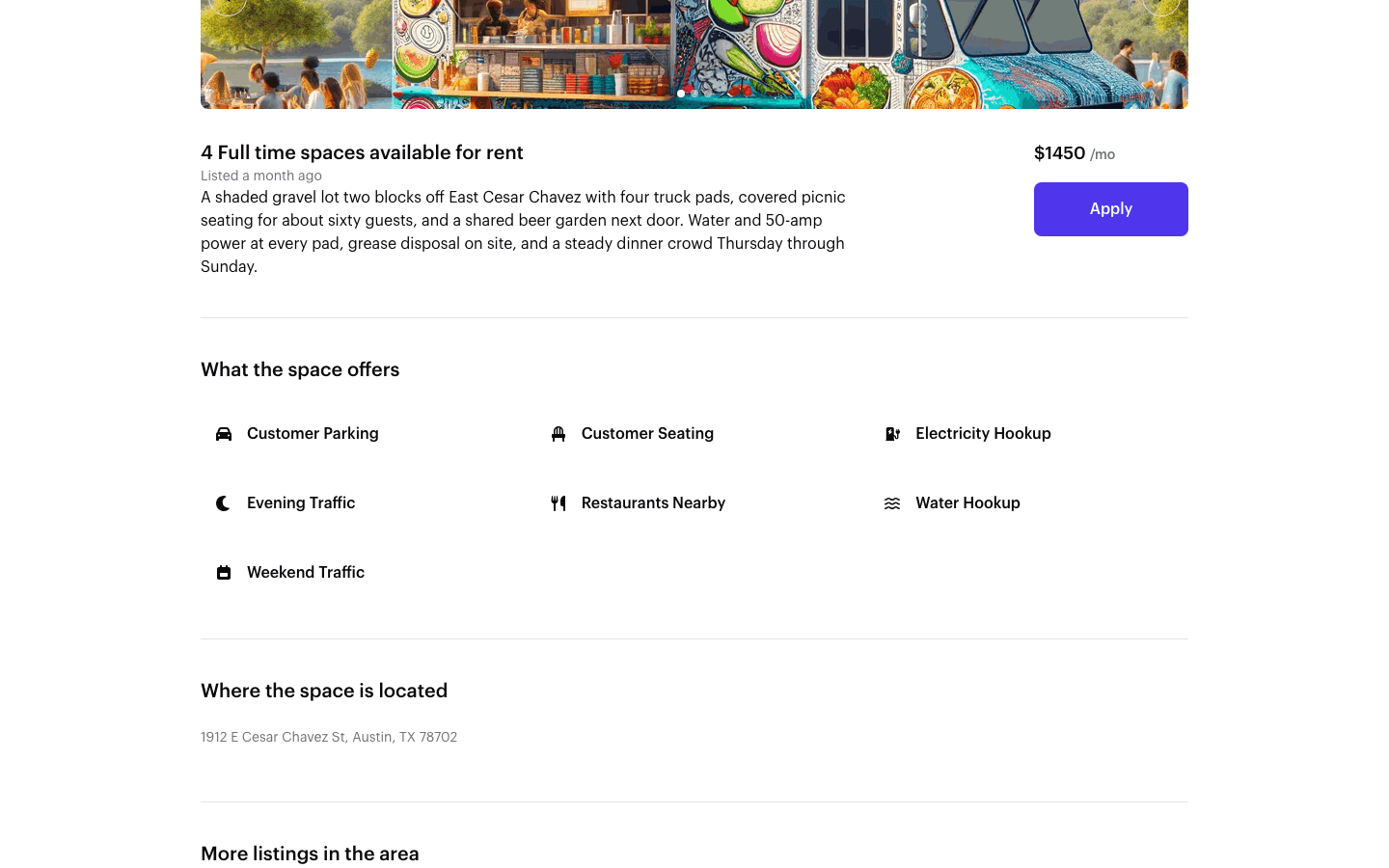
Your tags also show as a row of small badges on your listing's card wherever it appears in the locations directory. A card only has room for two of them, so however many you pick, a truck operator sees the rest after opening the listing itself.
Finding listings by tag
The locations directory's filters include the same three groups as checkboxes, alongside Location, Location Type, and Price — a truck operator can narrow the list down to only listings with the amenities, nearby context, or traffic pattern they need. See Searching and filtering listings for how every filter works together.