Finding a space for your food truck covers the basics of browsing the locations directory. This article is a closer look at each filter and how they work together.
The four filters
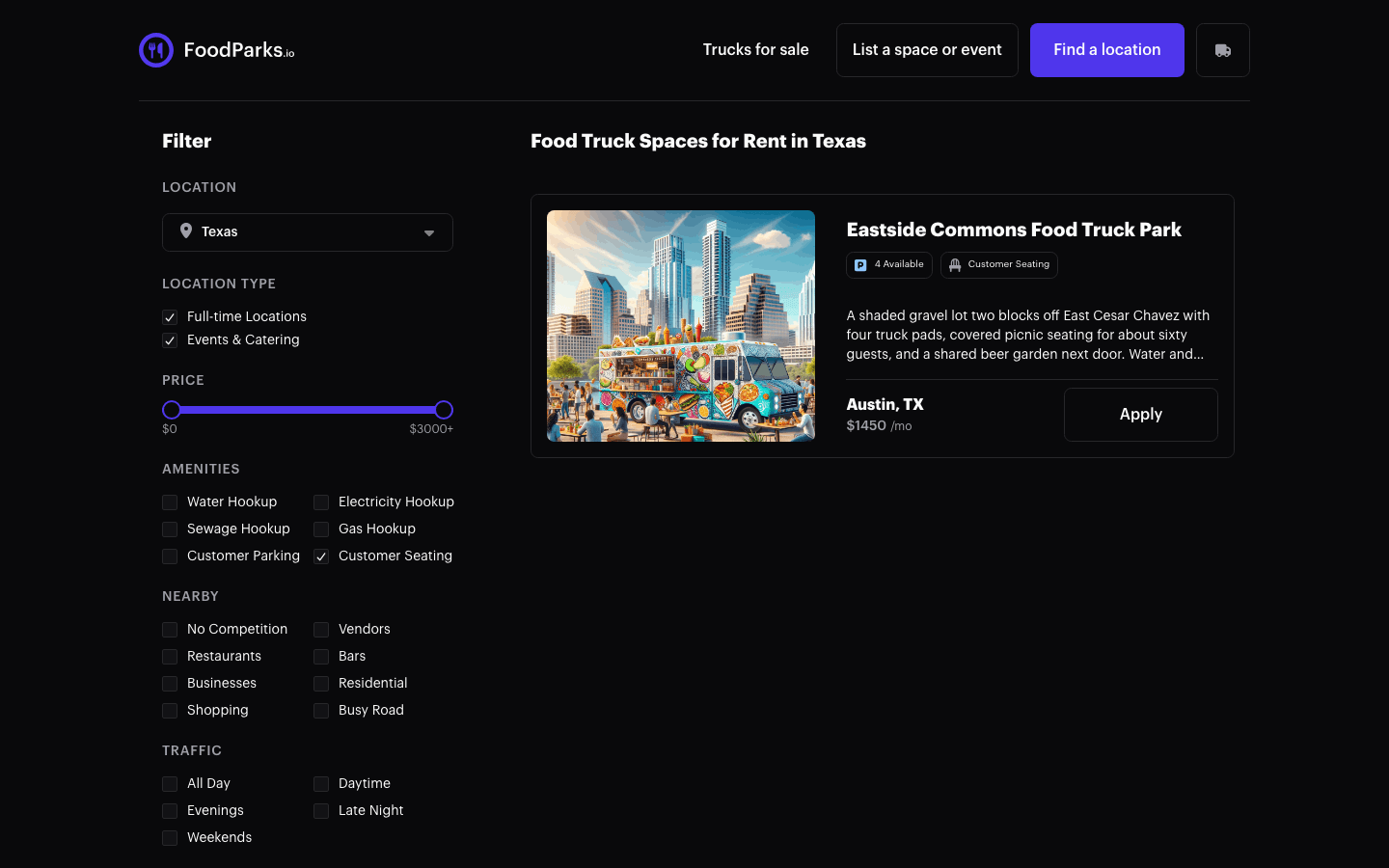
- Location — a dropdown of states, plus "All Locations." There's no separate city field here — to narrow to one city, visit its city page instead (see Finding a space for your food truck for how to reach one).
- Location Type — two checkboxes, Full-time Locations and Events & Catering. Leave both ticked (the default) to see every type, or tick just one to see only that type.
- Price — a monthly range slider from $0 to $3000+, in $50 steps. Drag either handle; the filter applies once you let go, not while you're dragging. Leaving the top handle at $3000 doesn't cap results at exactly $3000 — it means no upper limit at all. Only pulling it below the max sets a real ceiling. Set any range at all and listings whose owners hide their rent behind "Inquire for pricing" drop out too — leave the slider at its full range to keep seeing them.
- Tags — checkboxes grouped under Amenities, Nearby, and Traffic. See Tags: amenities, nearby, and traffic for what every tag means.
Filters combine
Every active filter narrows the list together — picking a state, a type, a price range, and a handful of tags all at once shows only listings that match every one of them. Once any filter is set, a Clear All link appears to reset the directory back to its unfiltered state in one click.
On a phone-sized screen
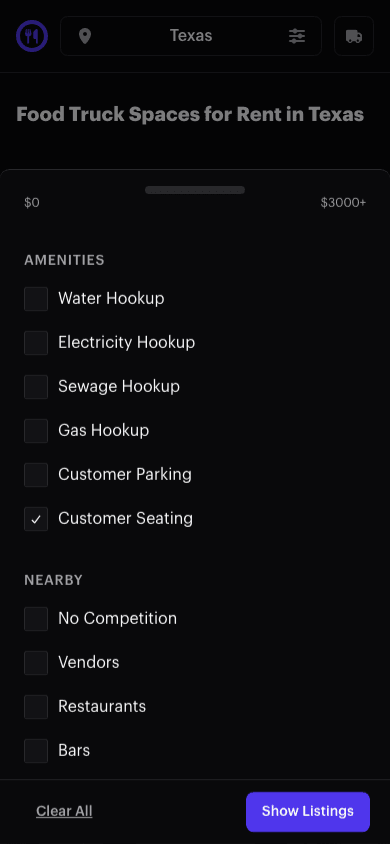
On the website at phone width the filters are the same, but they live behind the location button in the top bar — it shows the state you've currently picked, or "All Locations." Tapping it opens the filters in a drawer with Clear All and Show Listings buttons pinned to the bottom.
Results near you by default
Land on the directory without picking a Location, and FoodParks reads your approximate city and state from your connection and filters the list down to them — see Finding a space for your food truck for more on that. The order doesn't change: newest listings still come first. If nothing is listed in the city you're detected in, you see the whole catalog instead. Picking a Location yourself replaces the detected area for that search.
What you're searching
Only listings a space owner has made available to trucks turn up here — Available and Waitlist. Pending, Hidden, and Disabled listings never appear, no matter what filters you set. See Listing statuses explained for what each one means.
Found a space that fits? See Applying to a space for what happens next.