Every new listing on FoodParks starts out Pending — that's not a mistake, and it isn't something specific to your listing. It's the state every space or event passes through on its way to going live, while FoodParks reviews it.
What Pending means right now
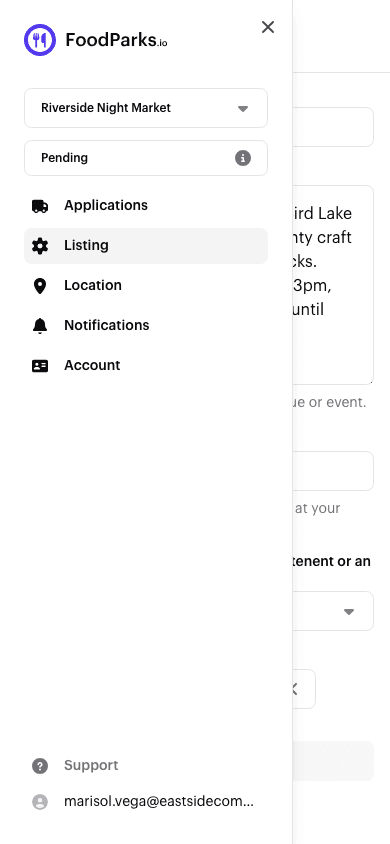
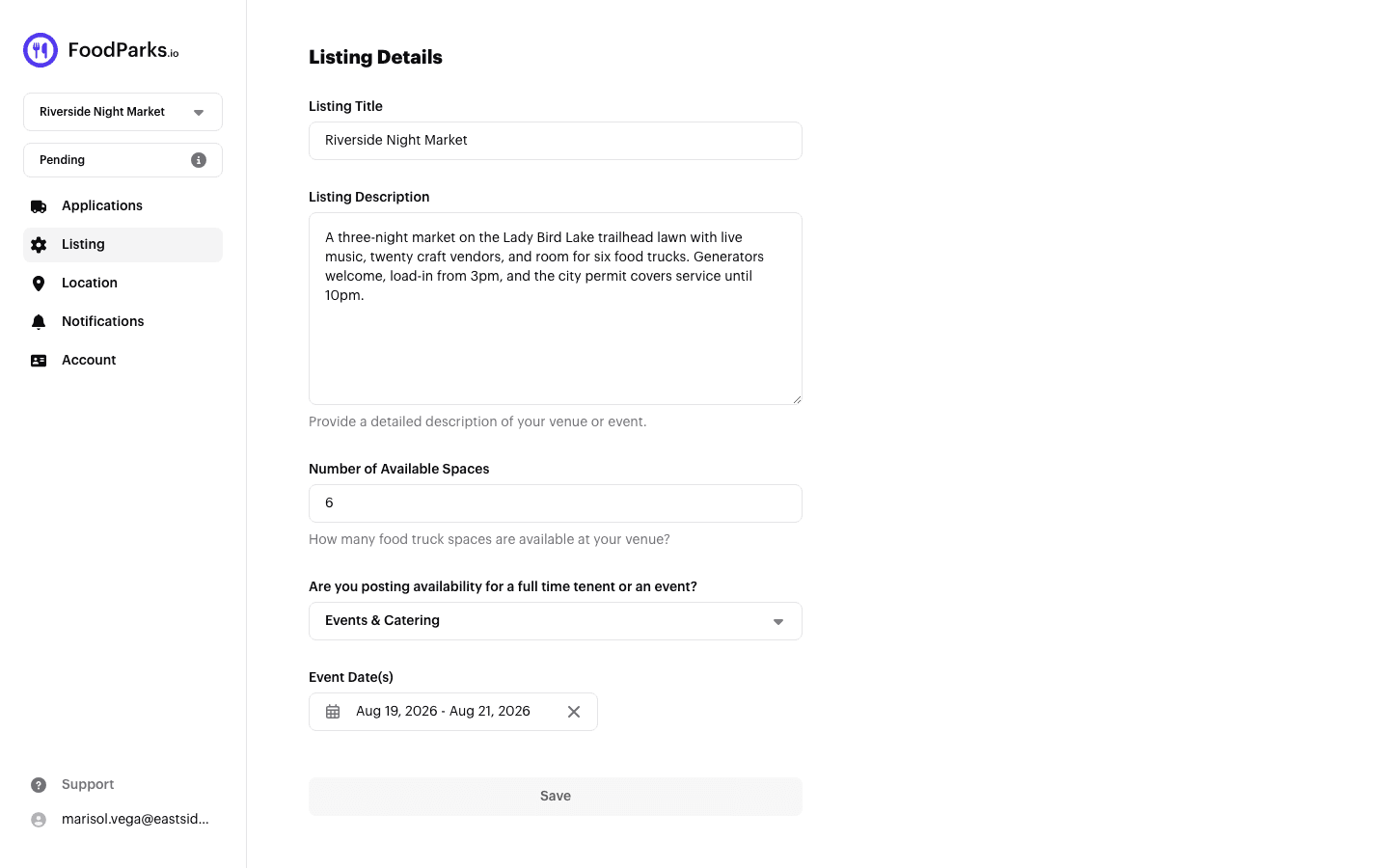
While your listing is Pending:
- It doesn't show up in search or on your city's page, and food truck operators can't find it. See Finding a space for your food truck for what a live listing looks like from their side.
- You can still change anything on it — name, description, photos, price, spaces, tags. See Editing your listing.
- The status shown in your dashboard is fixed at Pending; unlike Available, Waitlist, and Hidden, it isn't one you can set or clear yourself. See Listing statuses explained.
What FoodParks checks
A FoodParks admin reviews the listing — this isn't an automated check — to confirm it's a genuine space or event and that it meets FoodParks' quality standards before it's shown to food truck operators. There's no separate review request to submit: it's the listing itself, exactly as you filled it out, that gets looked at.
How long it takes
Reviews usually take 24 to 48 hours. There's no dashboard indicator that counts this down — you'll know it's done once the status on your dashboard changes away from Pending (typically to Available) and the email below arrives.
The emails you'll get
You'll get two emails about your listing's status:
- Right after you submit it: a confirmation that it's in review.
- Once it's approved: a second email letting you know it's live, with a link straight to your applications.
If you use the FoodParks app, the same status changes also arrive as push notifications.
Both go out through a scheduled run that fires about once an hour, so allow a little time after either submitting or being approved for the email to land. Both also respect your Listing status updates notification setting — with it switched off, no email is sent at all, so it's worth checking that before assuming something has gone wrong with delivery. If it's been a while and you haven't seen either one, see Not receiving notifications?.
Once it's approved
Your listing becomes visible in search and on your city's page, and food truck operators can start applying. Applications land on your listing's Applications page, each with its own message thread — see Reviewing applications from trucks.
If you just submitted your first listing, see Listing your first space or event for the full walkthrough, or Creating a listing for a field-by-field look at the form.