When a food truck applies to your listing, it does not get lost in your inbox — it shows up on your listing's dashboard with its own conversation, ready for you to read and respond to.
Where applications arrive
Open your listing and go to Applications in the sidebar. Every truck that has applied is listed there, the conversation with the newest activity at the top, along with the truck's photo, name, and how long ago the last message came in. Rejected applications sort to the bottom whatever their activity, and a long list breaks into pages of 20.
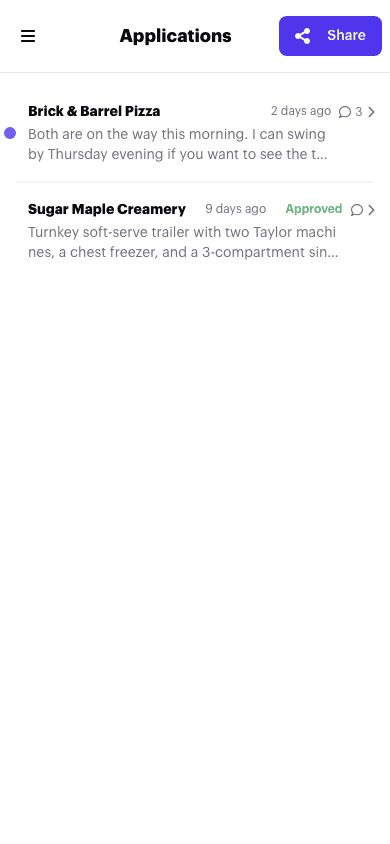
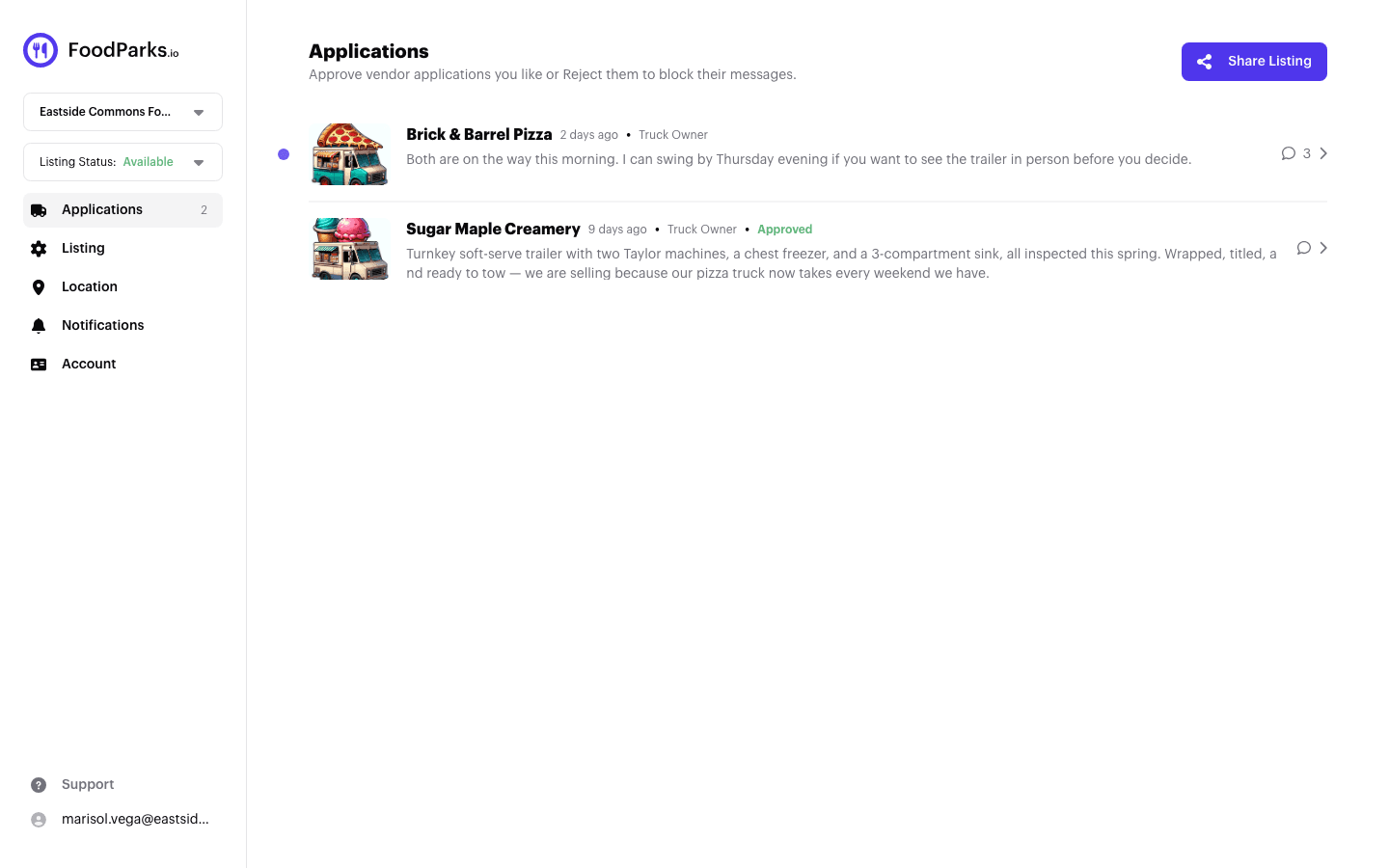
Each row also shows how many messages are in the thread and, once you have made a decision, whether the application is Approved or Rejected.
The unread indicator
A small dot next to a row means the truck has sent a message on that application that you have not read yet. Applying doesn't send a message by itself, so a brand-new application arrives with no dot — one appears once the operator actually writes to you. Opening the conversation marks it read and the dot disappears.
Reading the conversation and the truck's profile
Open a row to read the full conversation. Alongside it you will find the truck's profile: its photos, description, Instagram and Facebook links if the operator added them, and its dimensions, so you can judge fit for your space before you reply. On a narrower screen, tap Details to see the same profile. See Completing your truck profile for what goes into it.
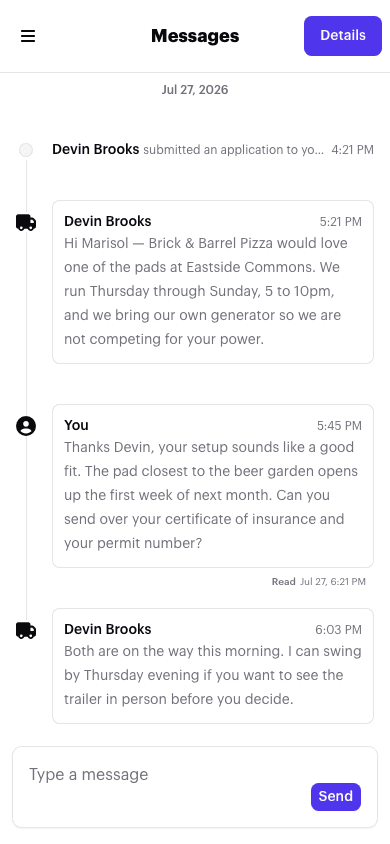
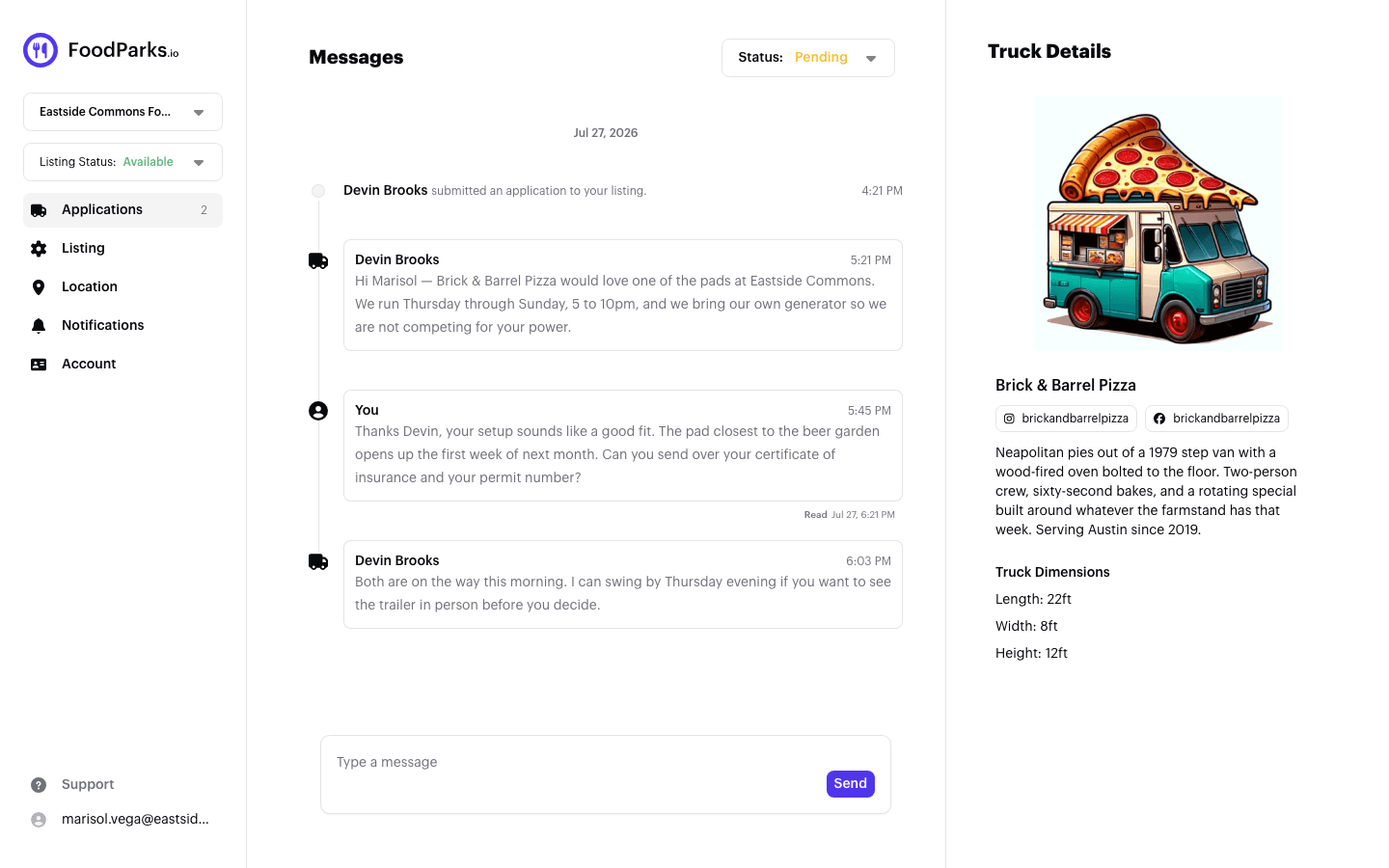
Use the conversation to ask anything you need before committing — insurance, permits, timing — and use the profile to see who you would actually be working with.
Deciding
Once you have read the thread and looked over the profile, you can approve or reject the application from the same screen. See Approving or rejecting an application.