Nothing stops one account from owning more than one listing, and once you do, FoodParks shows a switcher in the dashboard so you can move between them. Trucks work a little differently, since each one is tied to the email address that registered it — see below.
Managing multiple listings
There's no limit on how many listings one account can own. Start another any time from Create another listing — see Creating a listing.
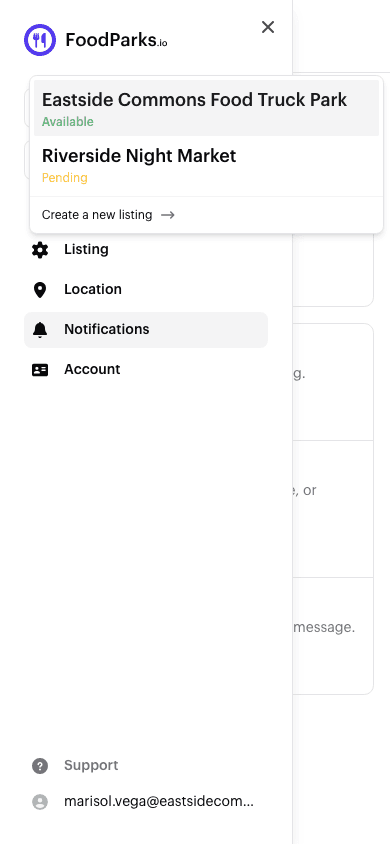
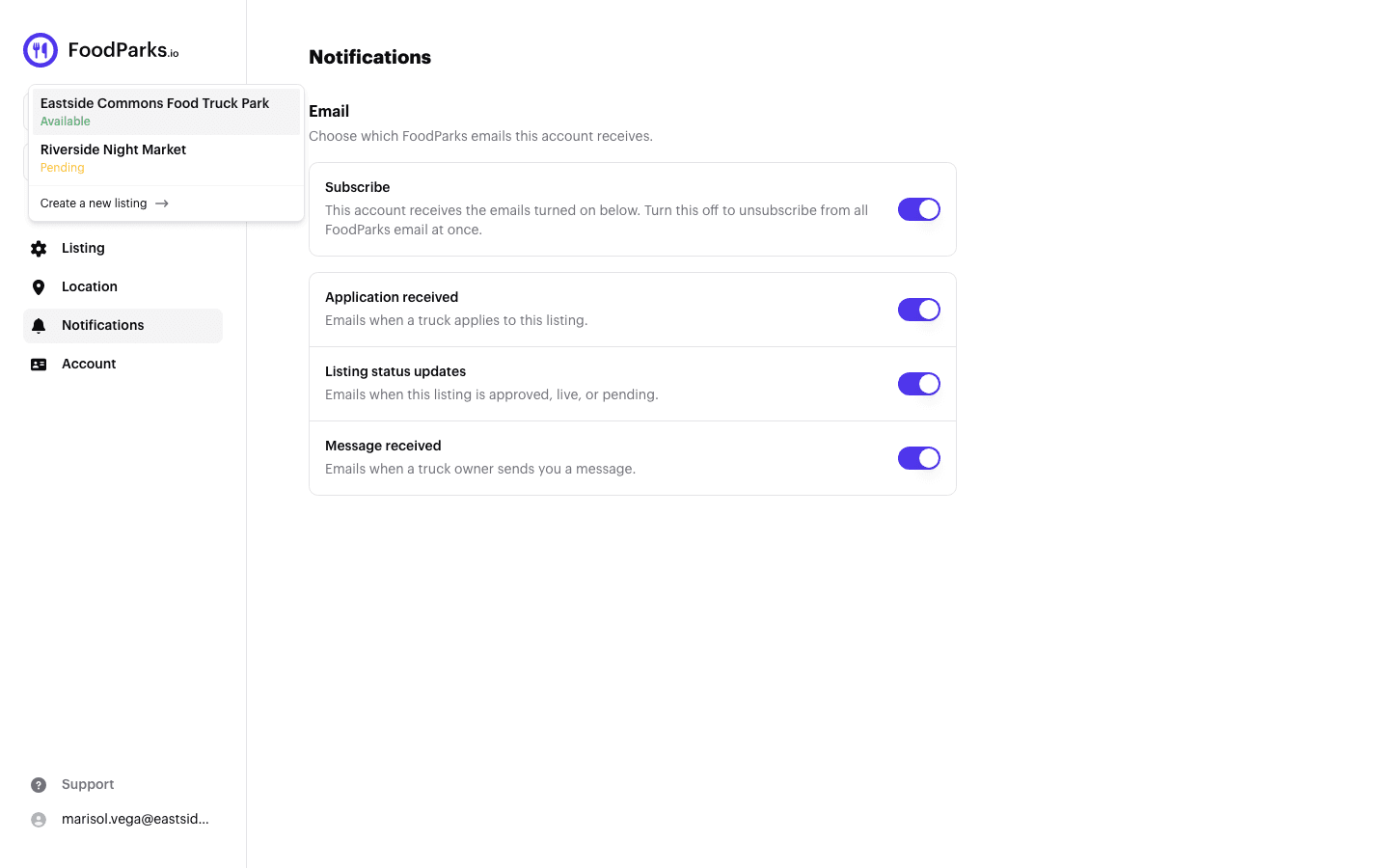
Once you own two or more, opening any of your listings shows a switcher at the top of its sidebar, listing every listing you own along with its current status. Pick one to move the whole dashboard — applications, details, notifications, everything — over to it, or choose Create a new listing at the bottom to start your next one without leaving the page.
Managing multiple trucks
Registering a truck ties its profile to the email address you sign up with — see Registering your food truck — and starting the registration form on the website again with that same email takes you back to the truck you already have instead of opening a second one. Because of that, most truck operators only ever have one truck profile.
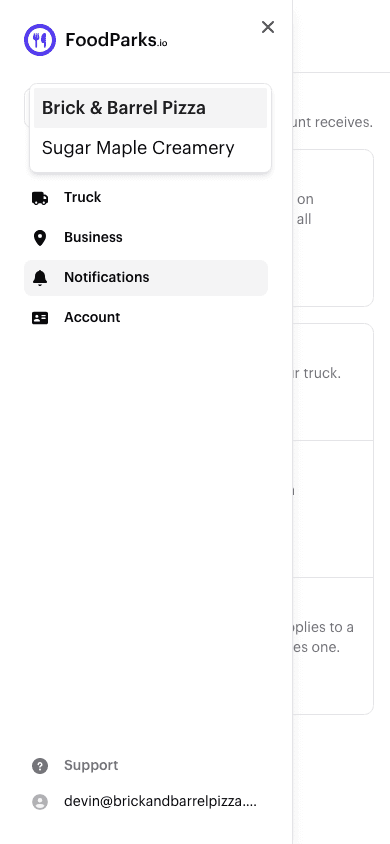
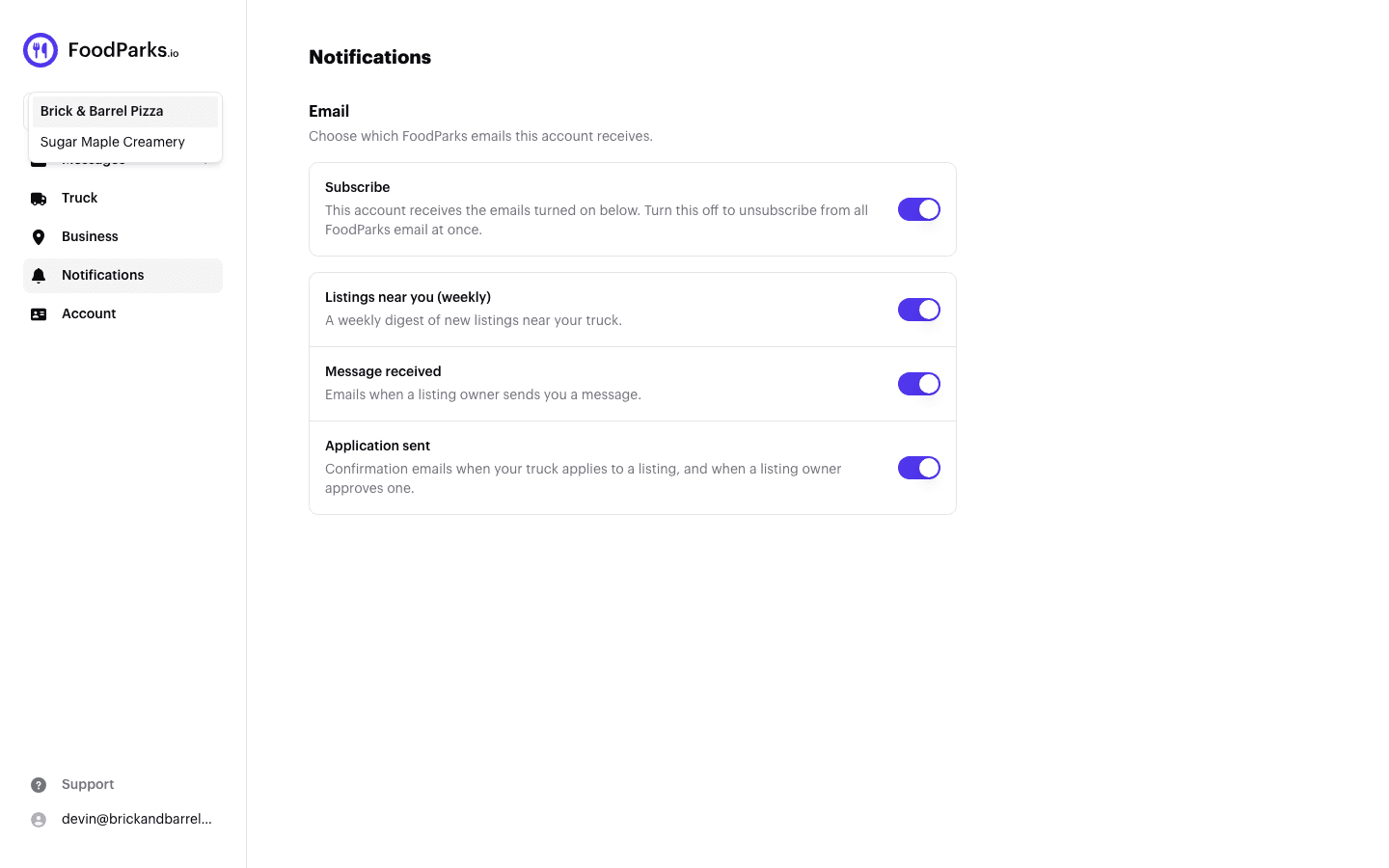
If your account does end up owning more than one truck, its dashboard shows the same kind of switcher, listing every truck you own so you can jump between them the same way.
Running a truck and a listing together
Owning a listing and a truck at the same time is a different combination — one of each, rather than more than one of the same kind. See Space owner, truck operator, or both? for how the account menu shows a section for each.