FoodParks gives you two separate controls over the emails you get: a per-notification preference for each type, and a single all-or-nothing switch. This article is about the switch — what flips it, what it stops, and what it doesn't.
Two ways to control your emails
For fine-grained control, your listing's or truck's Notifications settings let you turn individual notification types on and off — see Managing notification preferences.
The unsubscribe link is different: it's a single switch on your account that turns off every notification email at once, and it overrides whatever your individual preferences say. There's no in-between state — it's either off for everything, or your preferences decide type by type.
That same switch is the Subscribe toggle at the top of your Notifications settings, so you can turn it off — and back on — without waiting for an email to arrive.
Using the unsubscribe link
Every notification email FoodParks sends includes an Unsubscribe link in its footer. Clicking it flips the switch immediately for the account that received the email — you don't need to be signed in, and it works from any device or browser, since the link itself identifies the account. Some email apps recognize it and show their own one-click "Unsubscribe" button next to the sender's name instead, which does the same thing.
After clicking, you'll see a plain confirmation that the address has been unsubscribed. There's no separate page to visit afterward.
This applies to your whole account, not to one listing or truck. If you run more than one from the same login (see Managing multiple trucks or listings), unsubscribing turns off notification emails for all of them together.
What stops
Once the switch is on, none of these go out, no matter what your preferences say:
- New-message emails — a space owner or truck operator messaged you about an application, or a reminder that a message has sat unread for a while. See Your messages inbox.
- Application emails — a new application arrived on your listing, or a confirmation that your truck's application was sent.
- Listing status emails — your listing went into review, or went live.
The weekly digest of new listings near your truck stops too.
See Emails FoodParks sends for the full, itemized list of what falls under each of these.
What still arrives
Your sign-in code. FoodParks doesn't use passwords, so that email can't be part of the switch — turning it off would lock you out of your account entirely. It keeps arriving whether or not you've unsubscribed, and it doesn't carry an unsubscribe link itself, since it isn't something you'd want turned off. See Signing in with an email code.
Push notifications from the FoodParks app keep arriving too — the switch controls email only.
Resubscribing from your account
You can turn the switch back on yourself. Open the Notifications settings for any listing or truck on the account and turn Subscribe back on. Your individual choices are kept the whole time you're unsubscribed, so emails resume exactly as you had them set.
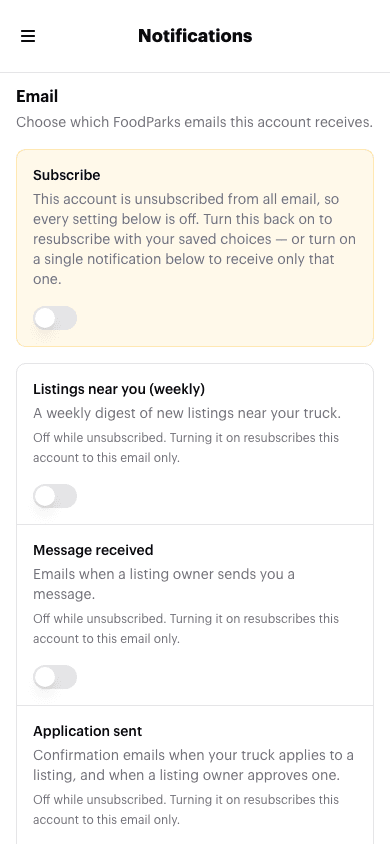
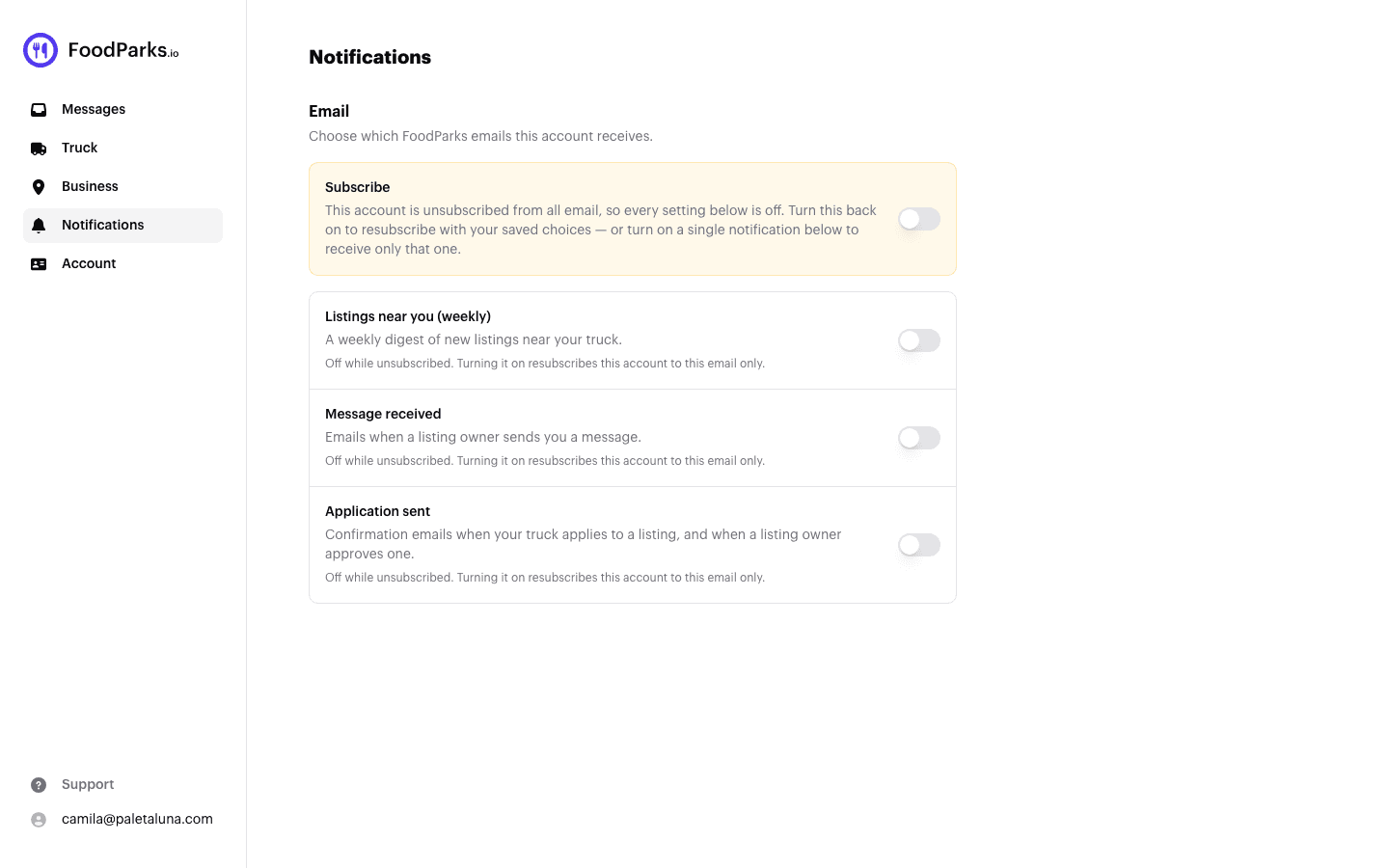
While the account is unsubscribed, every individual toggle on that page shows as off, since nothing is being sent. Turning one of them on resubscribes the account too — but only to that one email: the rest are switched off in the process. If you want your previous choices back, use Subscribe rather than a single row.
One honest caveat. Resubscribing controls what FoodParks tries to send, not what your mail provider accepts. If the unsubscribe came from bounced mail or a spam complaint rather than from you, the service that delivers our email may keep your address on its own suppression list for a while, and messages can stay undelivered until that clears. A bounce also clears your address's verified status, and that on its own stops every notification email — signing in with an emailed code re-verifies it. If nothing arrives after you resubscribe, contacting FoodParks support is the way to get it looked at.
If you're missing emails you expect and aren't sure whether this switch is the reason, see Not receiving notifications?.