FoodParks sends a handful of emails — new messages, application activity, and a weekly digest of new listings — and you choose which of those you get. This page is about email only: push notification preferences live in the FoodParks app's Notifications screen.
Where to find your notification settings
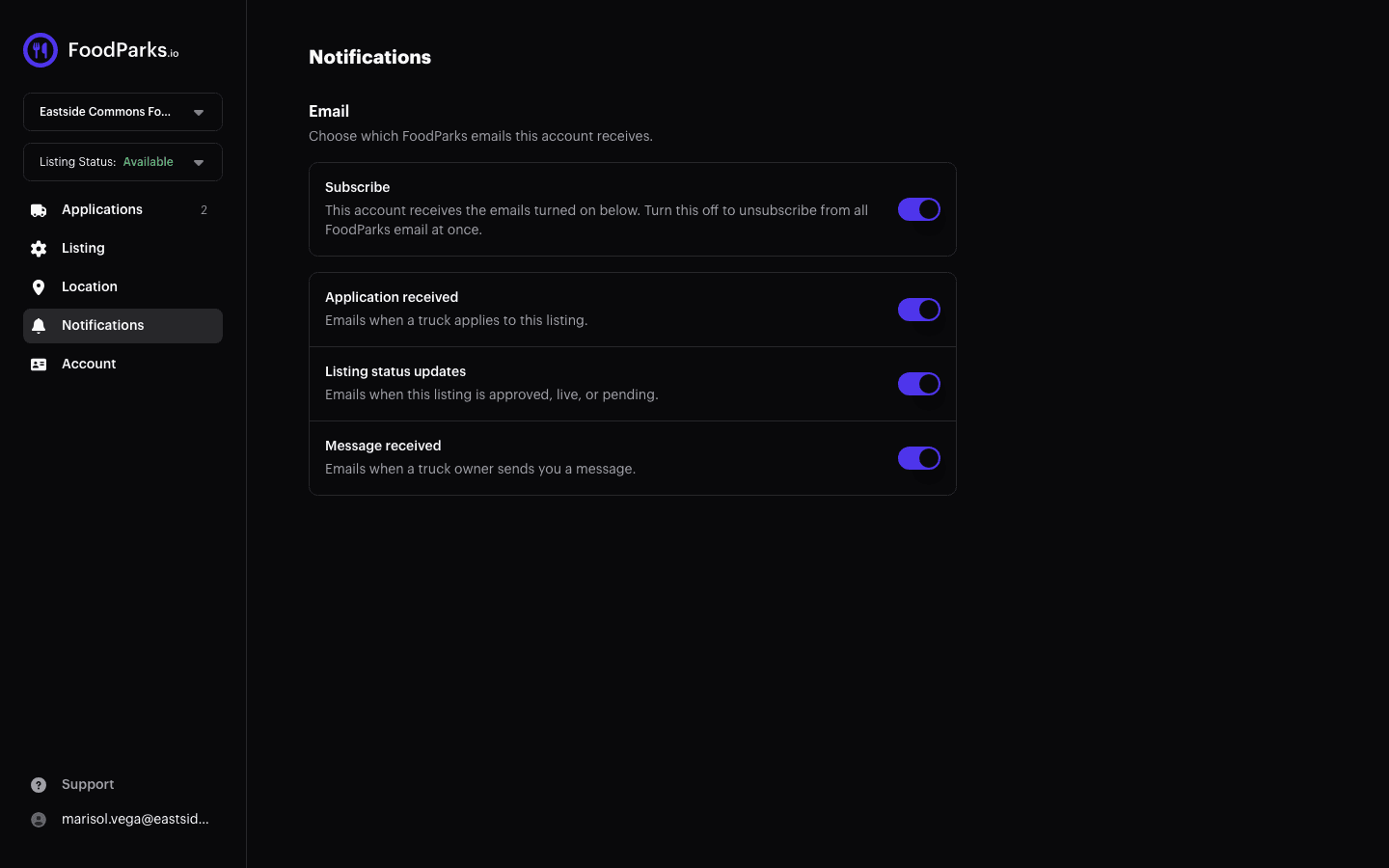
Space and venue owners — open your listing's dashboard and select Notifications in the sidebar.
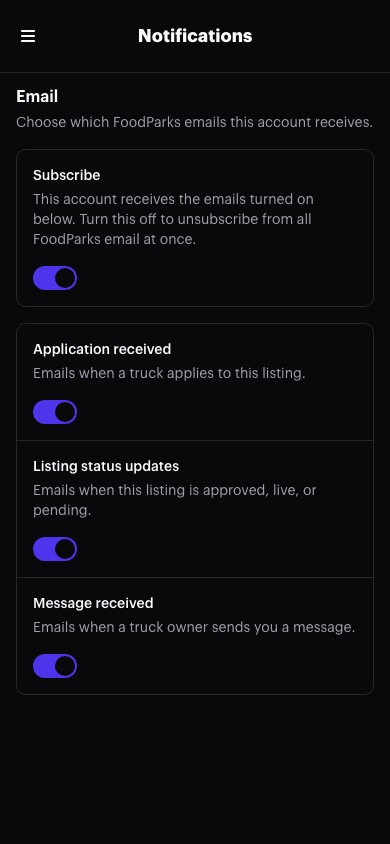
Food truck operators — open your truck's dashboard and select Notifications in the sidebar.
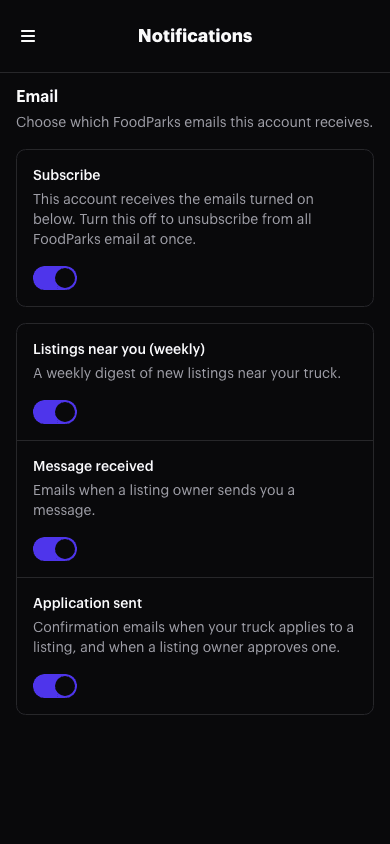
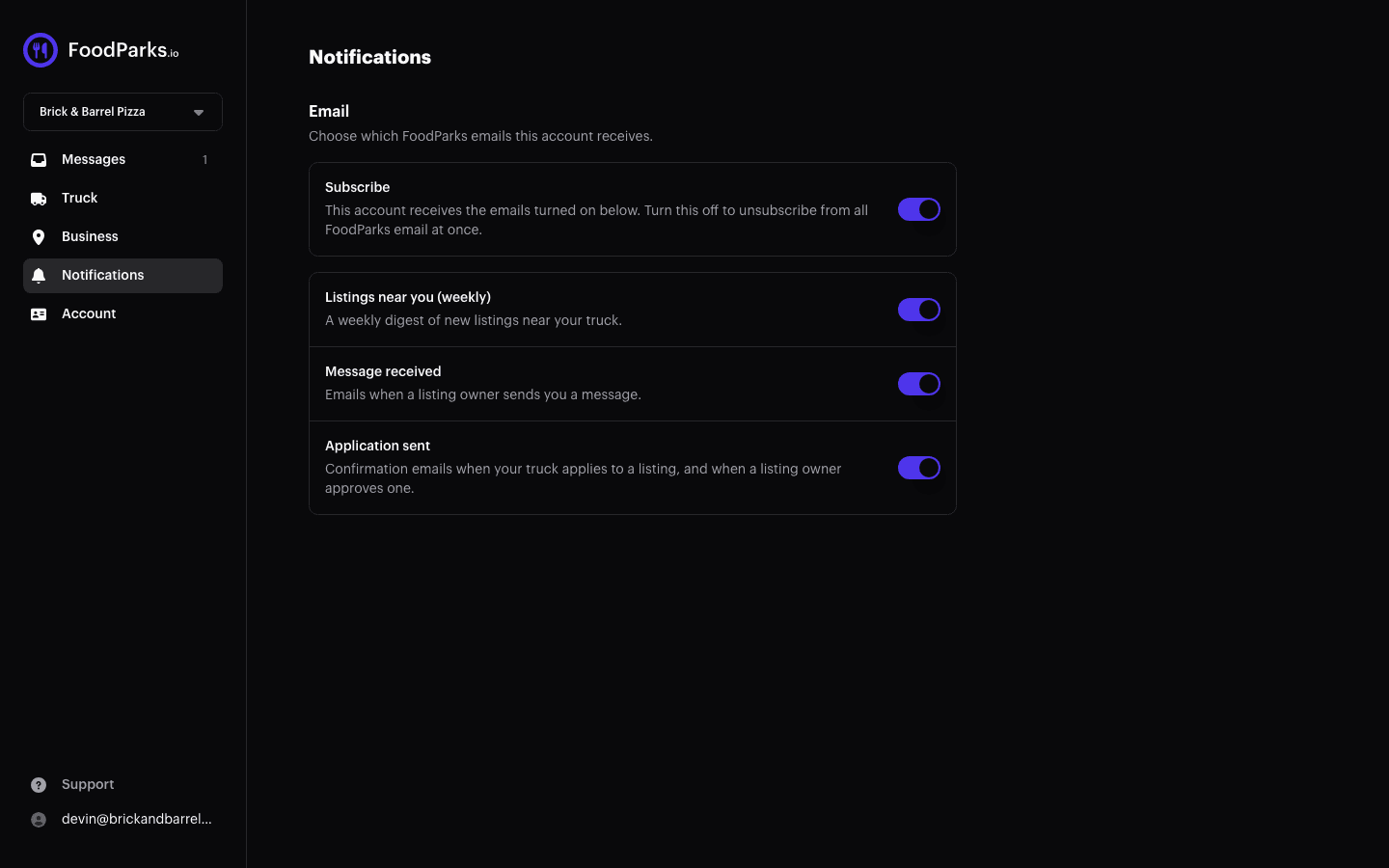
These preferences belong to your account, not to one particular listing or truck. Your account controls four categories of email in all, and a listing's or a truck's Notifications page lists the three that apply to that role. If you own both, two of those three are the same setting on both pages — Message received, and the application-updates one that a listing's page labels Application received and a truck's page labels Application sent — so changing either page changes both. The third row belongs to that role alone: Listing status updates appears only on a listing's page, and Listings near you (weekly) only on a truck's. See Managing multiple trucks or listings for switching between the ones you own.
The descriptions printed under each toggle are worded for the listing or truck whose dashboard you opened — "this listing", "your truck" — but the setting behind them is the account-wide one. Turning a toggle off from one listing's page turns that category off for every listing and truck on the same account.
What each toggle controls
Space and venue owners see three category toggles:
- Application received — emails when a truck applies to one of your listings.
- Listing status updates — emails when one of your listings is approved, live, or pending. It's a setting of its own: turning it off leaves Application received on, and turning that one off leaves this one on.
- Message received — emails when a truck operator sends you a message on an application.
Food truck operators see three category toggles of their own:
- Listings near you (weekly) — a weekly digest of new listings near your truck. It also needs the newsletter subscription chosen when the truck was registered: if that box was unticked at signup, this toggle on its own won't start the digest — ask FoodParks support to re-subscribe you.
- Message received — emails when a space owner sends you a message on an application.
- Application sent — a confirmation email when your truck applies to a listing. A space owner's decision on that application isn't emailed at all, whichever way it goes.
Every conversation these "Message received" toggles cover lives with its application — see Your messages inbox for where to find them, and Emails FoodParks sends for the full list of emails FoodParks sends and what triggers each one.
The master email switch
Above the individual toggles is Subscribe — one switch covering all FoodParks email to your account. Turn it off and nothing goes out, no matter how the toggles below it are set. Turn it back on and the choices you'd saved resume, unchanged. The unsubscribe link at the bottom of every notification email flips this same switch. Your sign-in code is the one email it doesn't cover — turning that off would lock you out.
While the account is unsubscribed, the individual toggles all show as off. Turning one of them back on also resubscribes the account, but only to that one email — the others are switched off in the process. Use Subscribe if you want your earlier choices back instead. See Unsubscribing from emails for how it works and what it stops.
If you expected an email and it never showed up, see Not receiving notifications?.